
Use case
Browse Agribalyse faster
Use Volca's web UI to search Agribalyse, open records directly, and inspect inventories with less friction than traditional expert-tool navigation.
Browsing serious environmental data should not feel heavier than the question itself
Sometimes the need is not an LLM answer at all. You just want to browse Agribalyse, find the right activity, open the source record, and inspect the inventory directly. Volca aims to make that path much faster and more legible.
What this use case shows
- fast search and browsing in Agribalyse
- direct access to real activity records
- inventory inspection without leaving the workflow
- a more usable path through a serious public dataset
Good fit for
- analysts checking what is actually in the database
- people comparing similar activities quickly
- teams who want inspectability before automation
- users who need the web UI more than a chat interface
Why it matters
Before automation, analysis, or AI, people still need direct inspection. Faster browsing makes the dataset itself easier to understand and reduces the overhead of answering simple navigation questions.
A natural browsing walkthrough
1. Start from an imperfect search
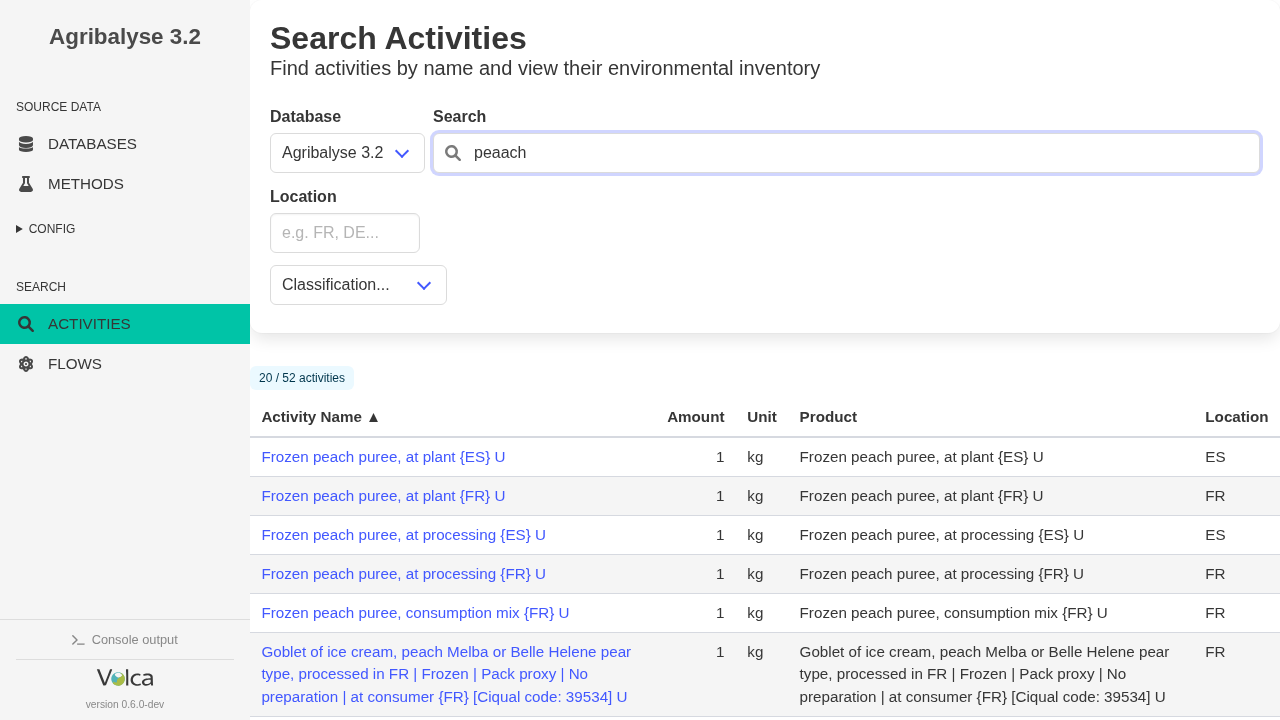
Type peaach and still find the right peach workflow
A natural browsing workflow starts with an ordinary search, not with a perfectly remembered process name.
Here the query is misspelled as peaach, but Volca still surfaces the relevant peach puree activities, including Frozen peach puree, at processing {ES}.
2. Inspect the selected process
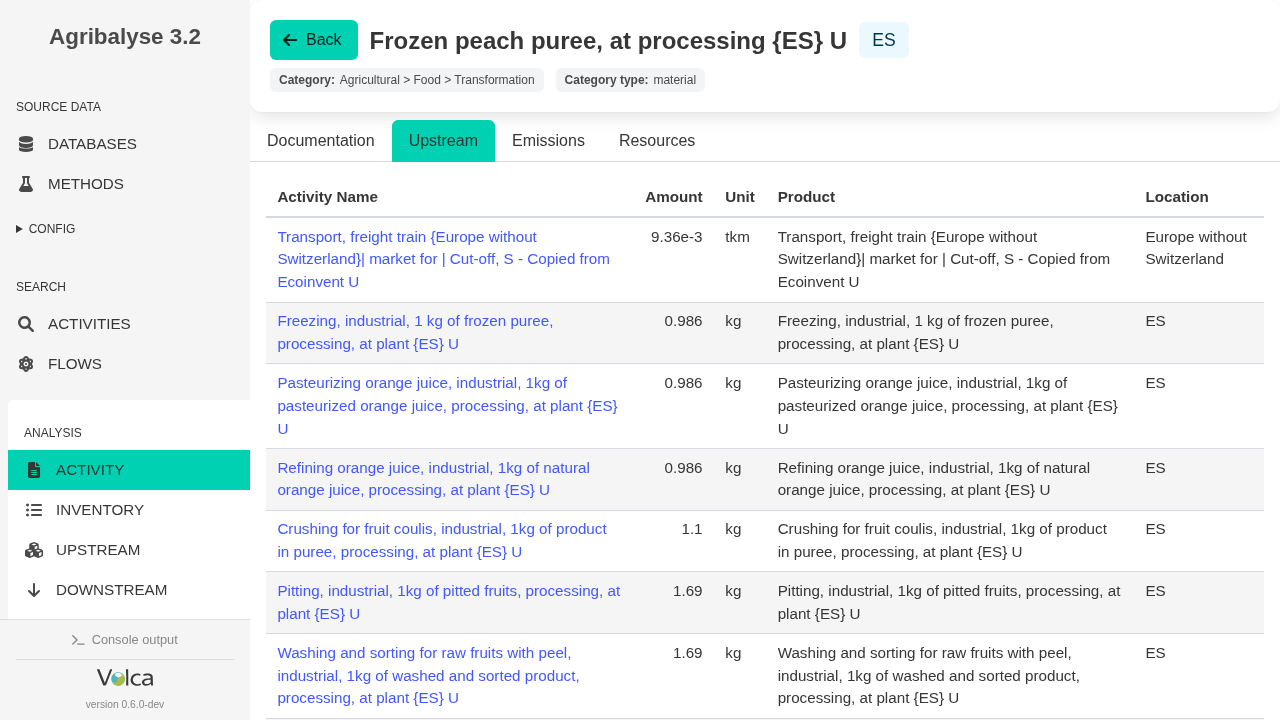
Open the direct upstream tab for frozen peach puree at processing {ES}
Once the right activity is selected, the most useful next view is often the activity's direct upstream tab, not the documentation page.
This shows the immediate upstream activities recorded on the database process itself. From the same direct view, you can also switch to the activity's direct emissions and resources before moving into broader supply-chain computation.
3. Switch to the full inventory
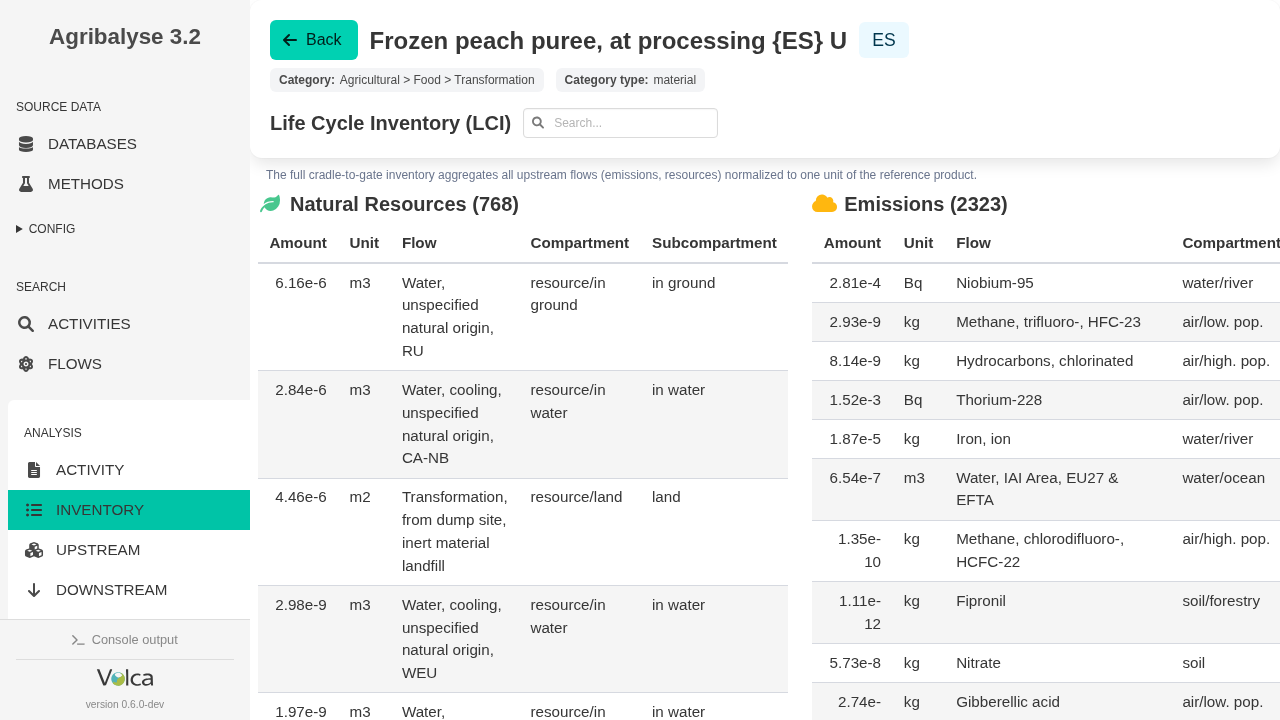
See all emissions and consumptions for 1 kg of frozen peach puree
The Inventory page is different from the direct activity view: it shows the full cradle-to-gate inventory needed to produce 1 kg of frozen peach puree.
Instead of only the direct record exchanges, you now see the complete life-cycle inventory behind the sector-wide production of that product.
4. Browse the upstream structure
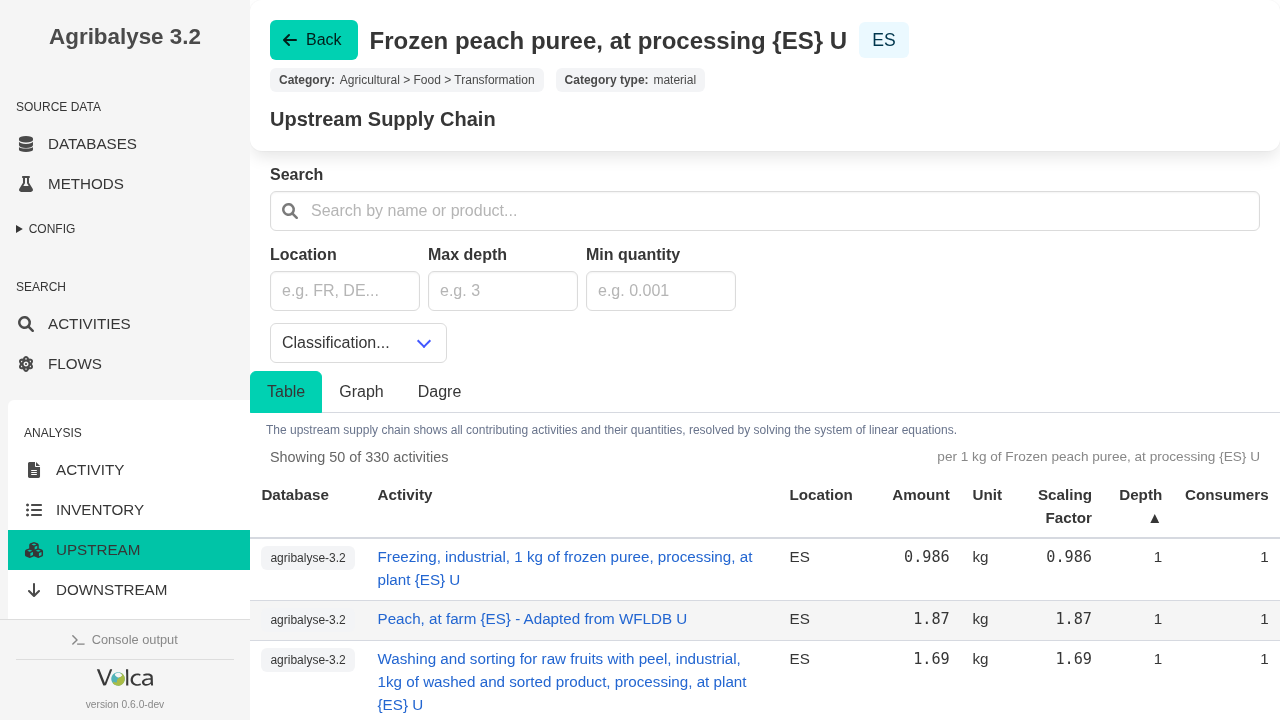
Move from one product to the list of upstream activities
The Upstream page turns the supply chain into a browsable table.
You can filter by name, location, depth, or quantity cutoff, then inspect whichever part of the upstream structure matters for the question you are asking.
5. Investigate a concrete suspicion
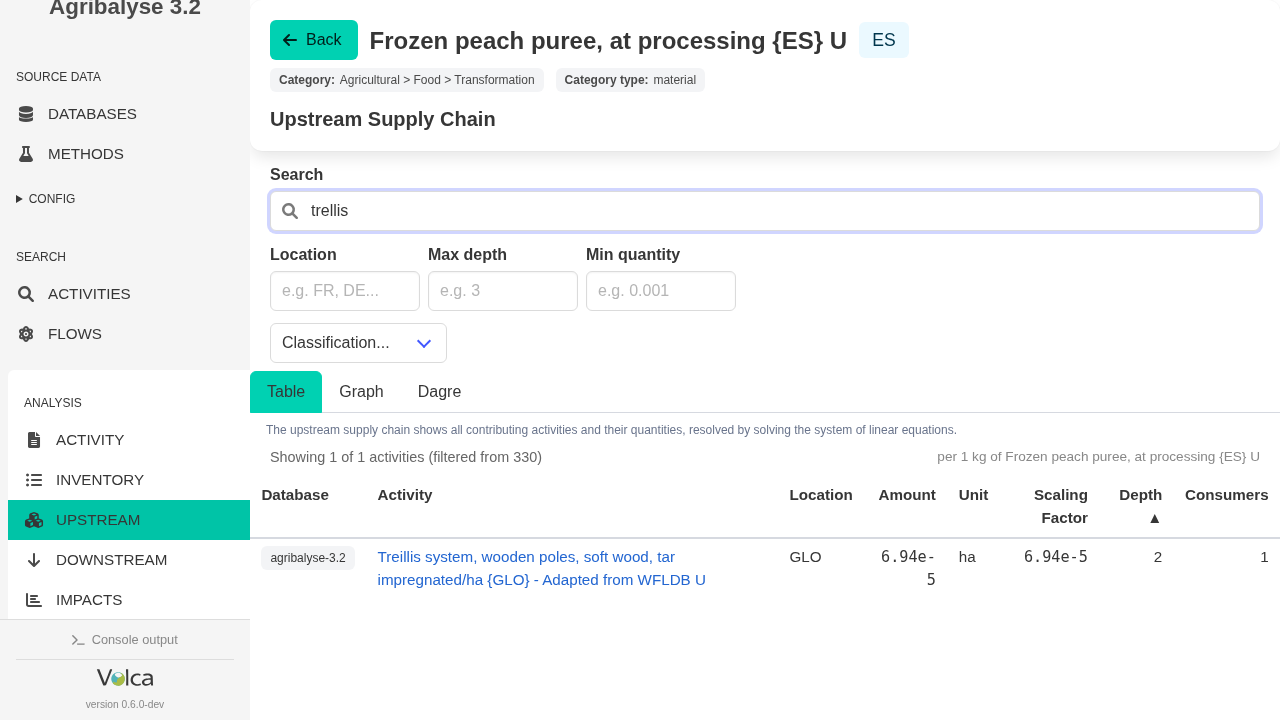
Search upstream for trellis and still find Treillis
Suppose you want to know whether tar-impregnated trellis systems were used in the orchard.
Searching trellis in the upstream name filter still finds the relevant Treillis system, wooden poles, soft wood, tar impregnated activity. Typo tolerance is useful here too, not only on the first search page.
6. Compute impacts
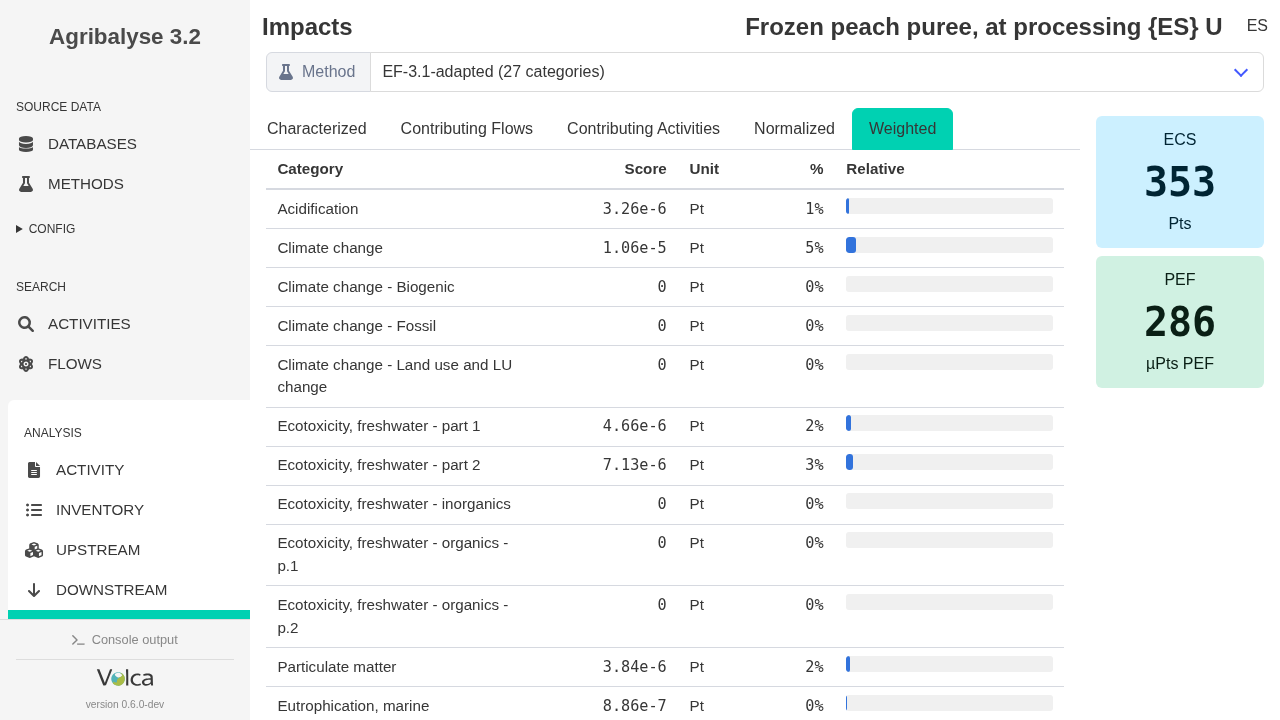
Get weighted impacts in a couple of seconds
From the same product page, the Impacts view computes weighted impact results without leaving the browsing workflow.
For this frozen peach puree example, the weighted EF 3.1 result is about 286 µPt in Volca — the familiar PEF-style point view, even though that framing is being deprecated. For a French weighting perspective, the same product is about 353 Pt in Ecobalyse; that comparison still excludes the ecosystemic-services complements that Ecobalyse adds and Volca does not yet include.
7. Pivot from one input to its consumers
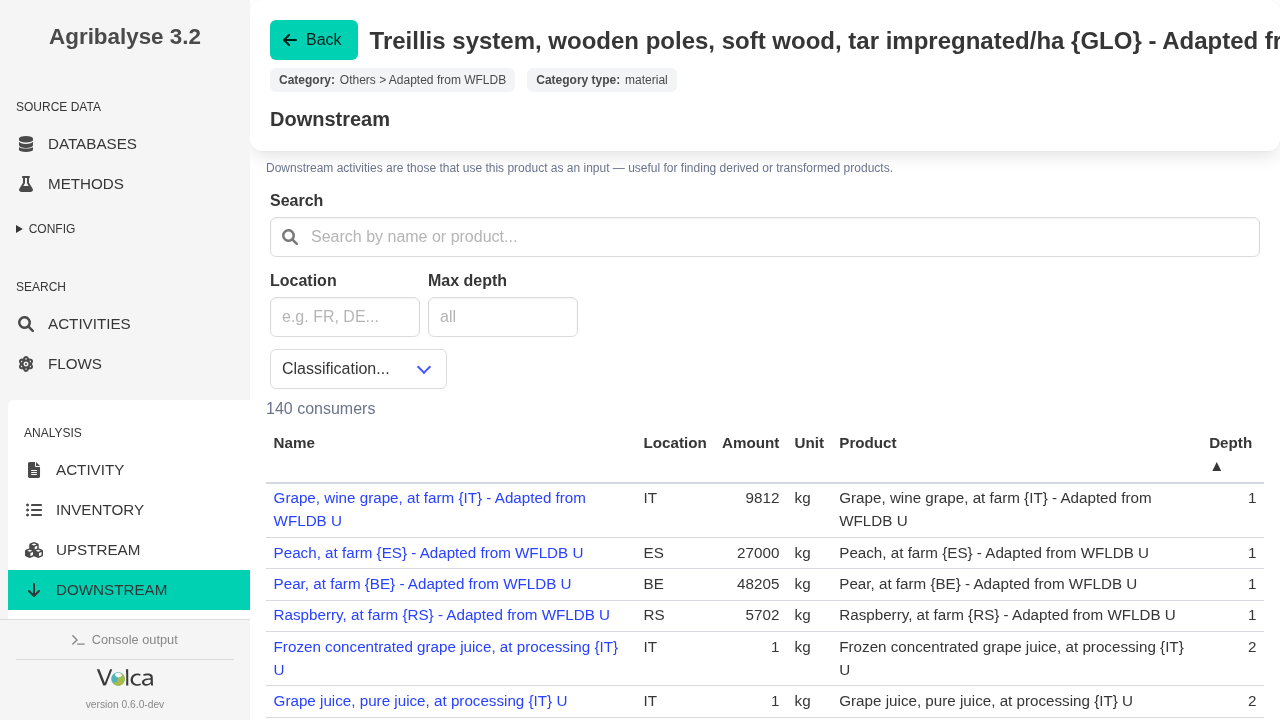
Open the trellis activity and inspect downstream uses
The workflow does not stop at finding one suspicious input.
Open the tar-impregnated trellis activity itself, switch to Downstream, and you can see which other activities use it — including peach and other fruit-related consumers.
Current scope
This page focuses on Agribalyse browsing and inspection in the web UI, with concrete examples that show search, record access, and inventory visibility.
If you want the LLM-assisted workflow instead, see the separate instant-answers page for Volca MCP.